WHAT ARE RESONANCES AND HARSH FREQUENCIES?
Every sound is a mix of many frequencies playing at once: low ones give weight (a kick drum, a bass), middle ones give body (a voice, a guitar), and high ones give air and sparkle.
Sometimes a few of those frequencies get much louder than the rest. A room, a microphone, a guitar body or a drum shell can make one note ring on, boom or whistle. These are resonances. They often come and go, for example only on loud notes or on certain chords.
Our ears don’t hear all frequencies equally. Some simply sound unpleasant when there is too much of them. We are most sensitive to the upper middle range, roughly 2 to 5 kHz, so anything that sticks out there sounds harsh: sharp, piercing or tiring, even when the music isn’t loud. Too much in the low middle sounds boomy or muddy instead.
Turning these moments down makes a track more pleasant to listen to, and you can turn it up without it hurting your ears. That is the job Tau Null does for you.
WHAT TAU NULL DOES
Tau Null is a dynamic resonance suppressor. It listens to your audio, finds frequencies that suddenly stick out — the harsh, ringing or boomy ones — and turns them down only while they stick out. Everything else passes through untouched.
That is the difference from a normal EQ cut, which is always on. If a vocal only gets harsh on its loudest notes, Tau Null only works on those notes, so the rest of the performance keeps its brightness.
Typical uses:
- Harsh vocals and sharp S sounds
- Boomy acoustic guitar and piercing high-gain guitar
- Ringing snares, boxy kicks and splashy cymbals
- Bright pianos and strings
- Gentle smoothing on a drum bus or the whole mix
Tau Null is a VST3 plugin for macOS and Windows and works in modern VST3 hosts. On macOS it also comes as a standalone app. It does not run in Logic Pro or Pro Tools, which need AU and AAX formats.
QUICK START
New to Tau Null? The easiest way to get to know it is on your whole mix.
- Insert Tau Null on your master track (the master bus).
- Click the preset name at the bottom left and choose Master Bus Pro. It is a good all-round starting point.
- Play the loudest, harshest part of the song.
- Turn on DELTA to hear only what Tau Null removes. This is what sticks out in your mix: you should hear thin, whistling, ringing or boomy sounds, not the music itself. Listen for a while; it is the quickest way to learn what resonances sound like. Then turn DELTA off again.
- Adjust Depth: raise it for more reduction, lower it if the sound gets dull.
- Press Bypass (the = button) to compare with the original.
- Recording or performing through the plugin? Turn on LIVE for low latency.
Once you are comfortable, try Tau Null on single tracks with the preset that matches them, for example Vocal De-Harsh on a vocal or Snare De-Ring on a snare.
INSTALL AND ACTIVATE
macOS
- Open the Tau Null disk image (.dmg).
-
Drag Tau Null.vst3 onto the Plug-Ins folder
shortcut in the same window. This installs it for all users in
/Library/Audio/Plug-Ins/VST3, and macOS asks for your password. To install it for your user only, copy it to~/Library/Audio/Plug-Ins/VST3instead. - To use the standalone app, drag it into your Applications folder.
Windows
- If you downloaded a .zip, unzip it first.
- Run the Tau Null installer (.exe).
-
It installs the plugin to
C:\Program Files\Common Files\VST3\Tau Null.vst3. Nothing else is needed.
Then open your DAW and rescan plugins if it does not pick up new ones automatically. Tau Null is listed under Tau Plugins.
Activation and the free trial
Until it is activated, Tau Null opens suspended: you can look around, but the sound passes through untouched. Click ACTIVATE OR START TRIAL at the top of the spectrum, then either:
- Start the free trial. Click START TRIAL. Every feature works for 14 days, and the time left is shown at the top of the spectrum. Each computer gets one trial.
-
Activate your license. Paste your license key, which was
emailed to you right after purchase and starts with
TAUNU-, and click ACTIVATE. During a trial, click the time left at the top of the spectrum to get to the same screen.
When a trial ends, Tau Null stops processing and the button reads ACTIVATE. Enter a key to carry on; your sessions and settings are kept.
- Activation and starting a trial need an internet connection once. After that Tau Null works offline.
- It quietly checks its license every few days. If there is no connection, it keeps working.
- One license covers three computers.
- Lost your key? Use the link on the activation screen to ask for it again, or write to hello@tauplugins.com.
THE INTERFACE
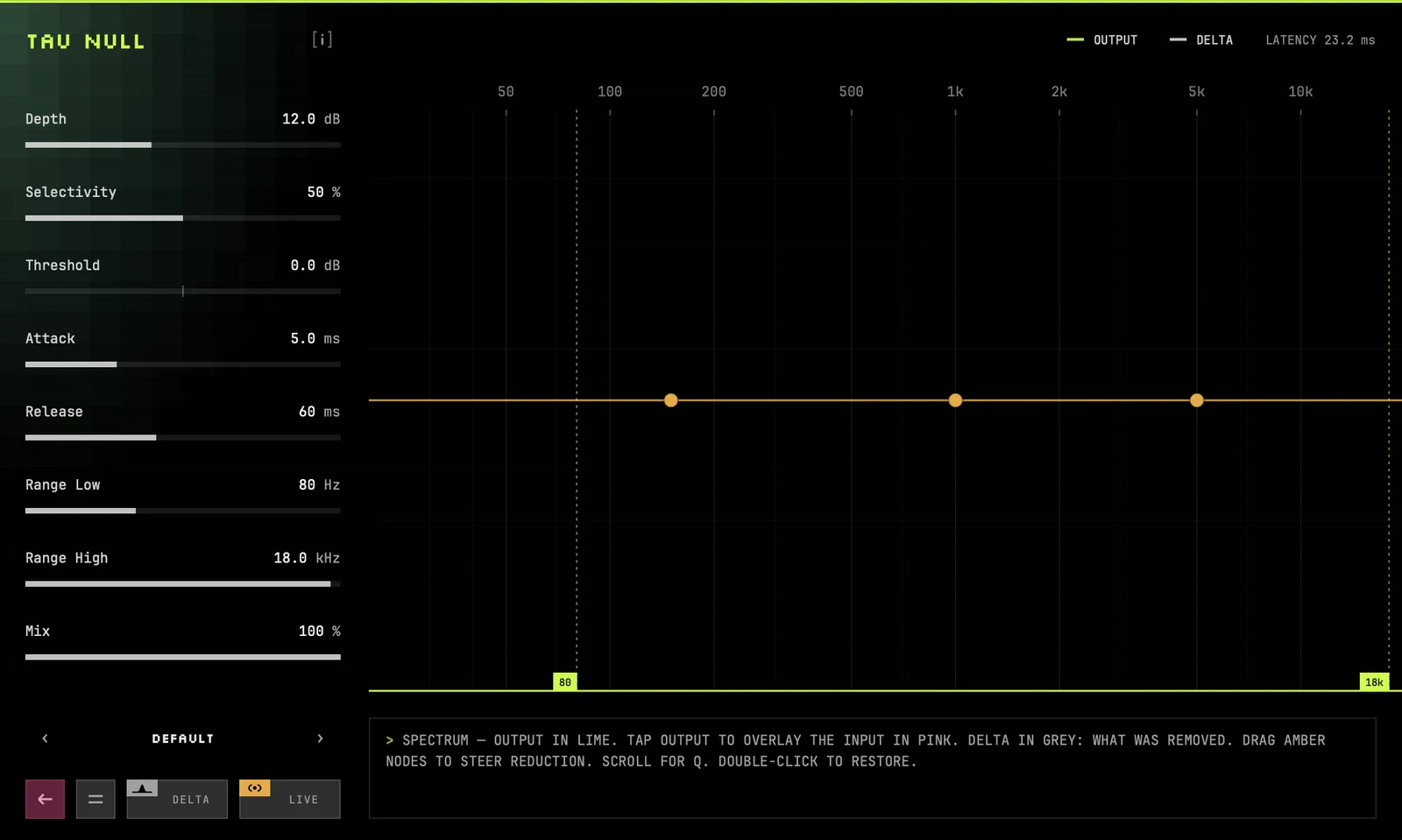
Tau Null fits on one screen with four areas:
- Controls (left): eight sliders that set how Tau Null reacts.
- Spectrum display (right): shows your audio and the reduction live, with three amber nodes you can drag.
- Bottom bar (bottom left): the preset selector and four buttons: Reset, Bypass, DELTA and LIVE.
- Help line (bottom right): point at any control and this line shows a short description of it. When you are not pointing at anything, it describes the current preset.
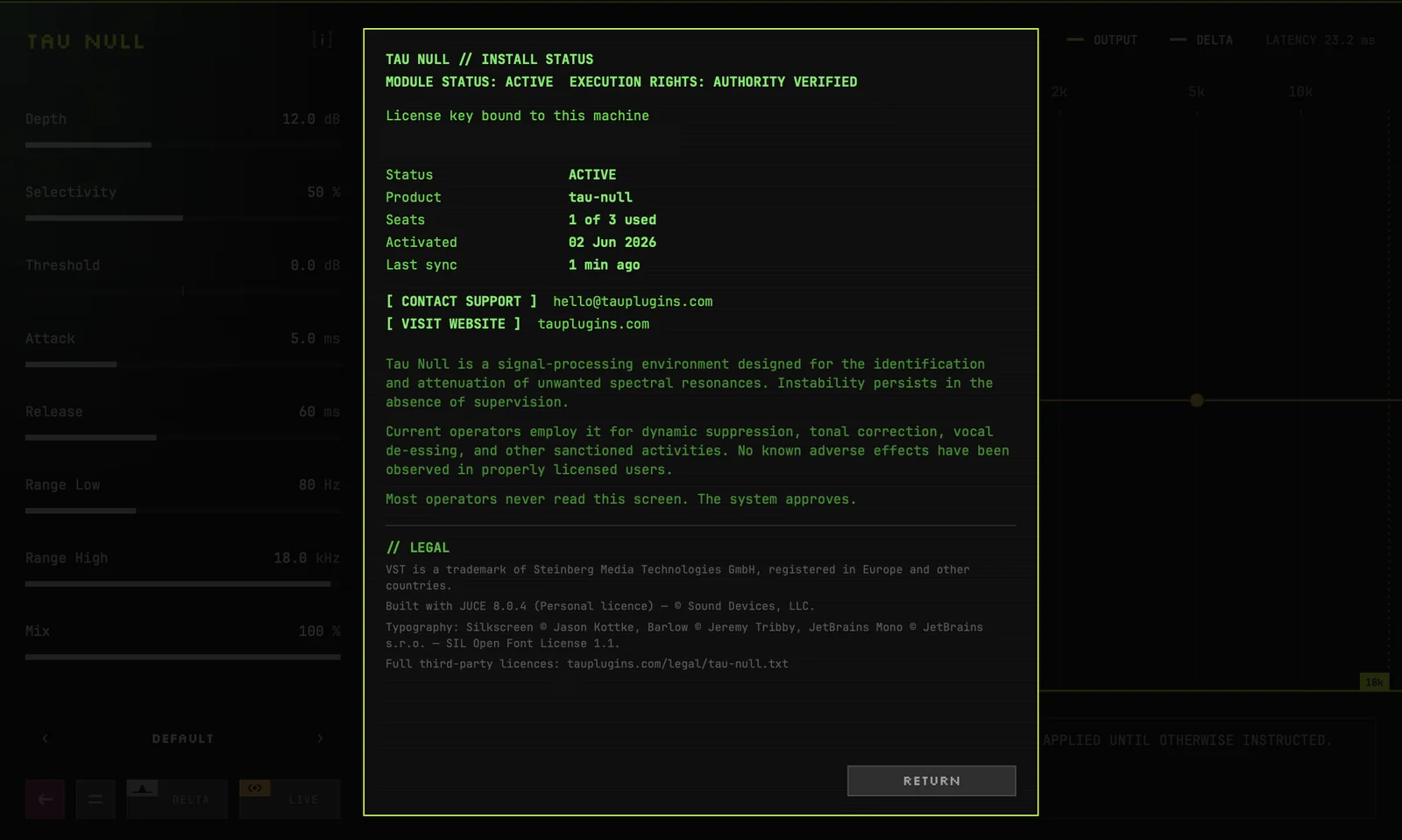
The [i] button next to the Tau Null name, top left, opens the install status screen.
CONTROLS
Drag a slider left or right to change it. Double-click a slider to return it to the value set by the current preset. Every control can also be automated from your DAW.
DEPTH

The most Tau Null may turn any frequency down. At 10 dB, a resonance can be reduced by up to 10 dB, never more. This is the main “how much” control.
A good range for most material is 8–14 dB. If the sound gets dull or loses its life, lower Depth. The nodes can add or take away depth in specific frequency areas.
SELECTIVITY

How picky Tau Null is about what counts as a resonance. Higher values go after narrow, distinct peaks, such as a single ringing note, and leave everything around them alone. Lower values react to broader areas for a smoother, more general taming.
Raise it when you hear one specific whistle or ring. Lower it when a whole region sounds harsh.
THRESHOLD

How far a frequency must stick out above its neighbours before Tau Null reacts.
- Lower (negative) values react to smaller bumps, so more gets reduced.
- Higher (positive) values leave everything alone except the strongest peaks.
Depth sets how far things go down; Threshold sets how easily they get picked. If Tau Null is working all the time when you only want it on the worst moments, raise Threshold.
ATTACK

How quickly the reduction starts once a resonance appears. Short attack catches fast, spiky sounds such as drum hits, picked strings and S sounds. Longer attack lets the first moment of a note through and works on what rings after it, which keeps more punch.
RELEASE

How quickly the reduction lets go once the resonance has passed. Short release gives precise, fast-moving correction. Longer release sounds smoother and more natural on sustained sounds such as vocals, strings and pads.
RANGE LOW AND RANGE HIGH


The frequency window Tau Null works in. Anything below Range Low or above Range High passes through completely untouched. Both limits are shown on the spectrum display as dotted lines with small labels at the bottom.
Raise Range Low to keep the low end of a kick or bass exactly as it is. Lower Range High if you want to keep the very top “air” of a mix untouched.
MIX

Blends the processed sound with the original. At 100% you hear only the processed sound. Lower values add the original back in for a subtler result, which is handy when a setting is right but slightly too strong.
THE SPECTRUM DISPLAY
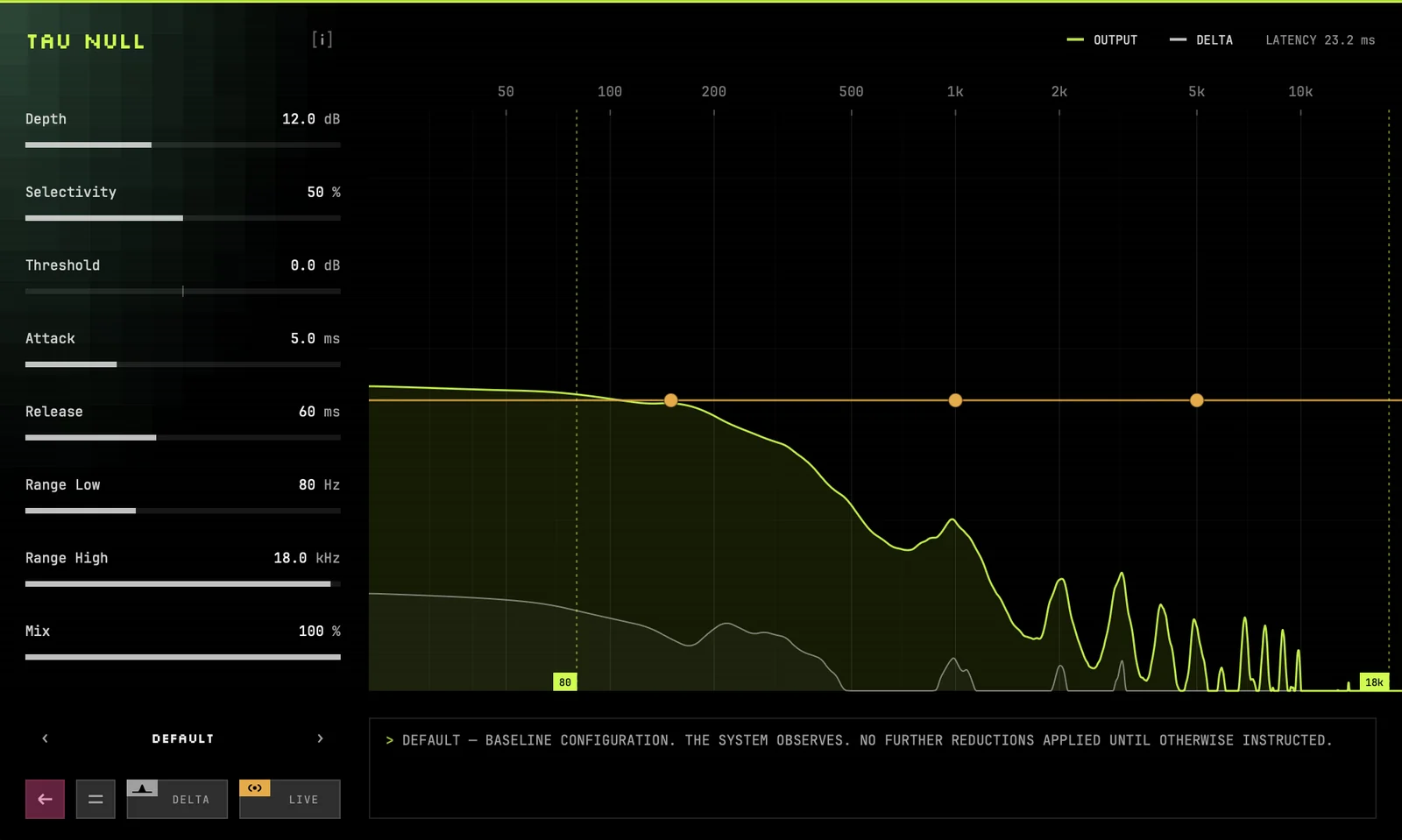
The display shows your audio from low frequencies on the left to high frequencies on the right, updated as it plays.
- Lime is the output: the sound coming out of Tau Null.
- Grey is the delta: what Tau Null is removing right now. Click DELTA in the legend at the top to hide or show this line. This only changes the picture; the DELTA button at the bottom changes what you hear.
- Pink is the input. Click OUTPUT in the legend to show it on top of the output, and click OUTPUT or INPUT to hide it again. Wherever pink sits above lime, Tau Null is turning that frequency down.
- The dotted lines mark Range Low and Range High.
- LATENCY, top right, shows how much delay Tau Null currently adds at your sample rate. See LIVE and HQ modes.
NODES
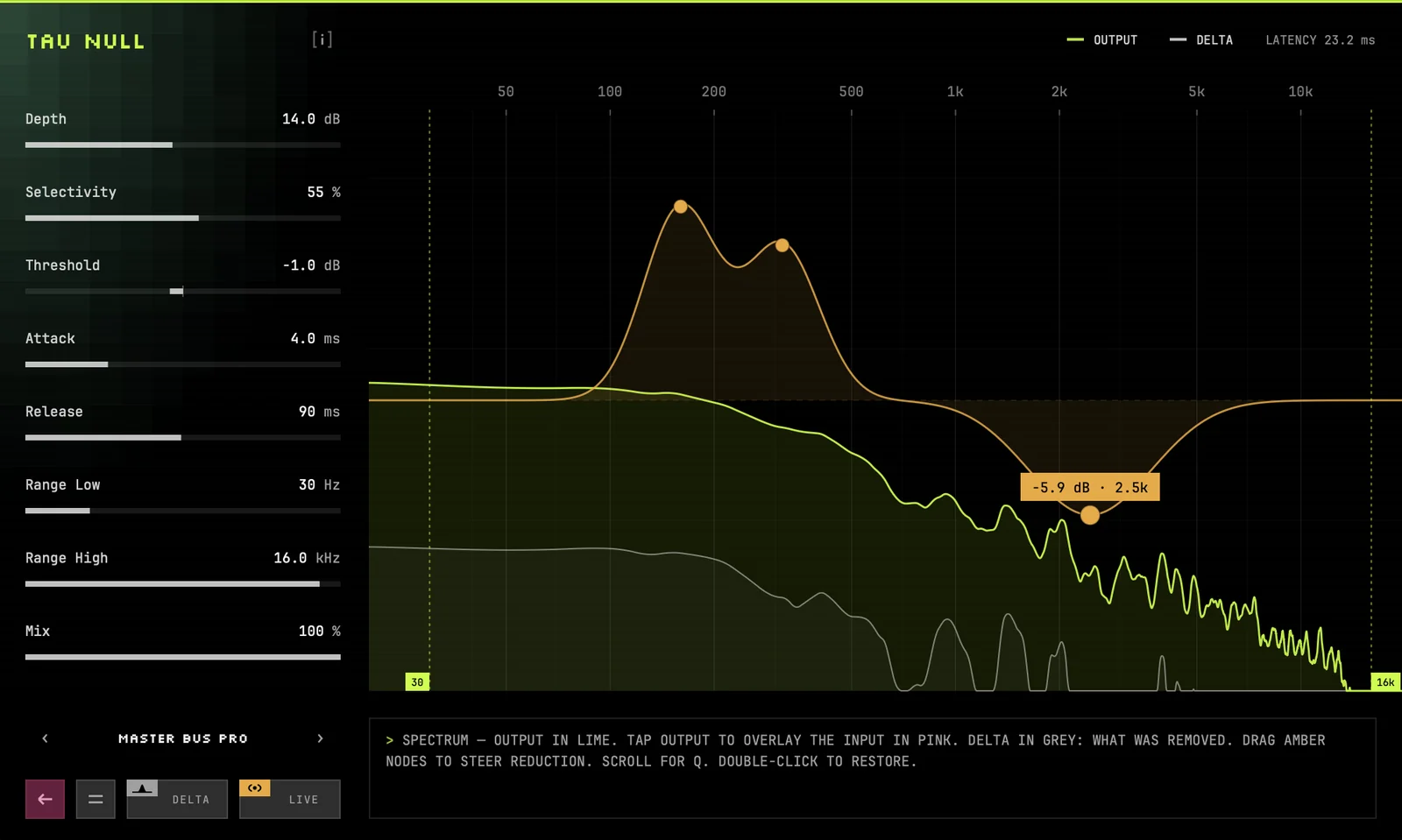
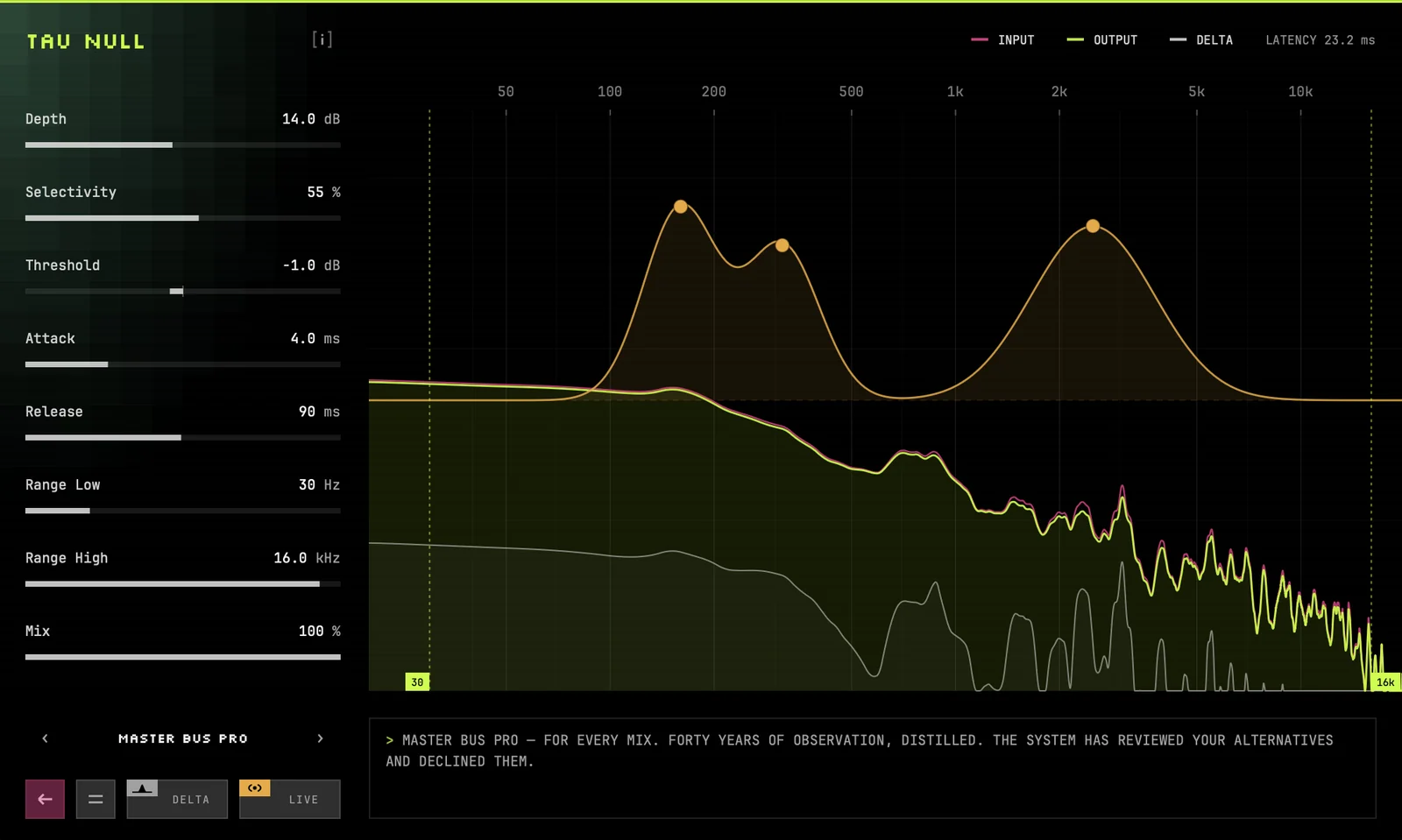
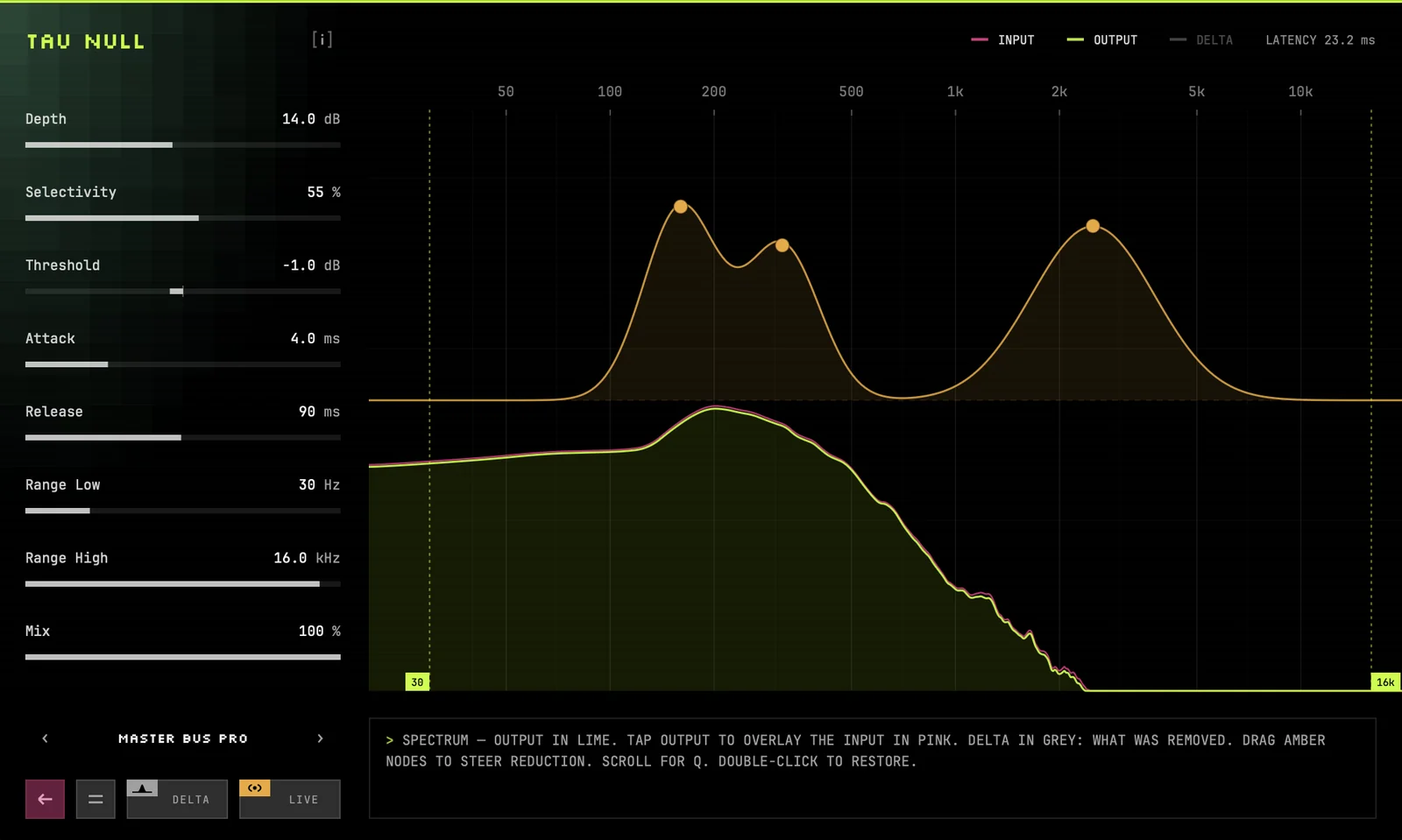
The three amber nodes let you decide where Tau Null works harder and where it holds back. Together they draw the amber curve across the display.
- Drag a node up for more reduction around its frequency, on top of Depth.
- Drag a node down for less reduction there, to protect something you want to keep.
- Drag left or right to move it to another frequency.
- Scroll over a node to change how wide it is. Scroll up for a narrower node, down for a wider one.
- Double-click a node to put it back where the current preset had it.
While you drag, a label shows the node’s amount and frequency. Each node can go 12 dB up or down. Node 1 covers 30 Hz–2 kHz, node 2 200 Hz–8 kHz and node 3 1–18 kHz. With all three nodes on the centre line, every frequency gets the same Depth.
Example: a vocal sounds harsh around 3 kHz but you like its low-mid warmth. Pull the node nearest 3 kHz up a few dB and the node near 250 Hz down a little.
PRESETS
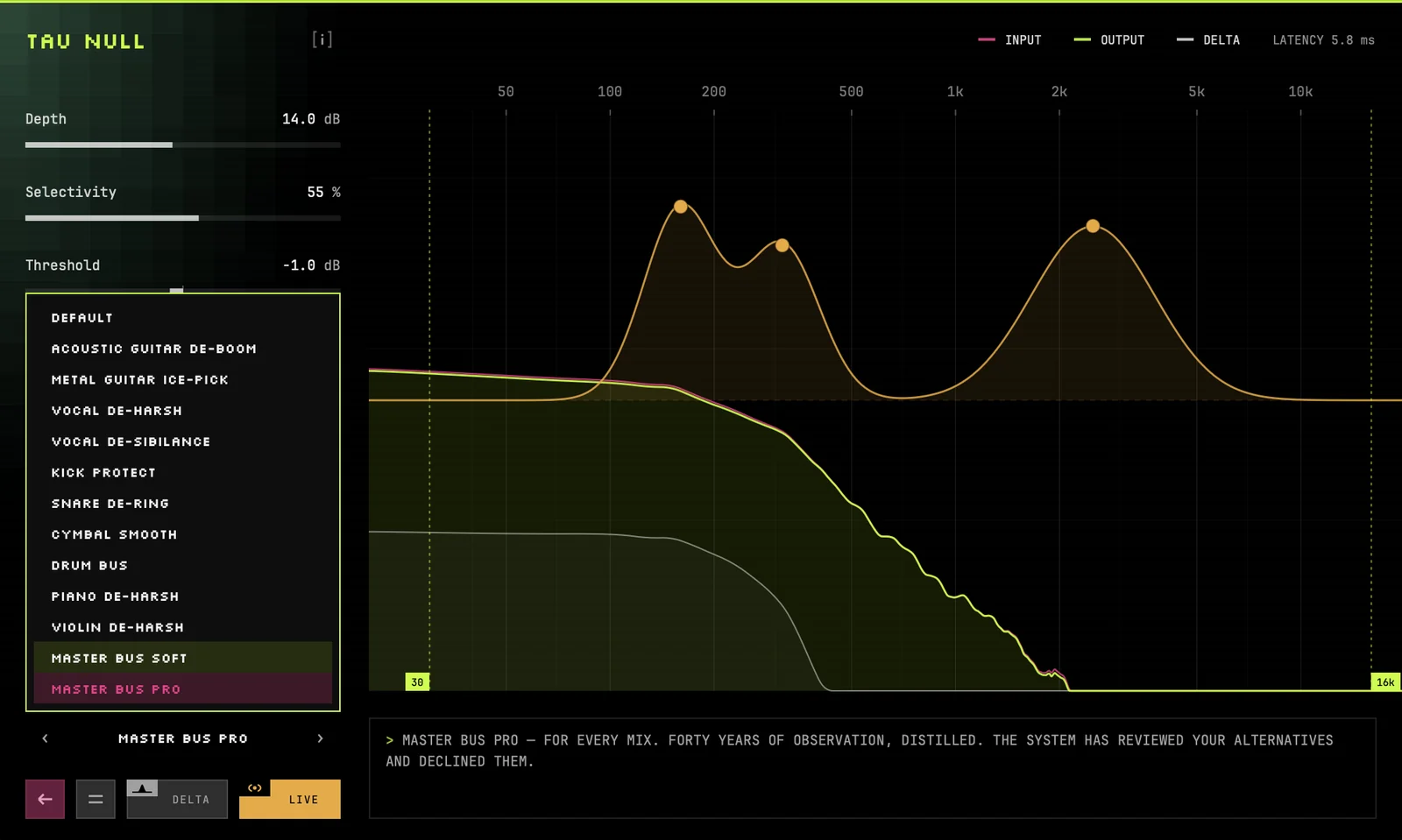
Use the ‹ and › arrows to step through presets, or click the preset name to pick from the full list. A preset sets all eight controls and the three nodes. Each is a starting point: adjust anything you like from there.
| PRESET | USE IT FOR |
|---|---|
| Default | A neutral start: even reduction across the range, nodes flat. |
| Acoustic Guitar De-Boom | Boomy build-up around 100–250 Hz on acoustic guitar. Slower and gentle. |
| Metal Guitar Ice-Pick | The piercing area around 2.2 kHz in high-gain guitars. Narrow and fast. |
| Vocal De-Harsh | Harshness around 1.5, 3 and 6 kHz in vocals, leaving S sounds alone. |
| Vocal De-Sibilance | Sharp S and T sounds, caught very quickly. |
| Kick Protect | Cleans boxiness around 350 Hz while keeping the kick’s 60 Hz weight. |
| Snare De-Ring | Snare ring around 800–1200 Hz, plus some cymbal bleed. |
| Cymbal Smooth | Harsh, splashy cymbals in the 2–9 kHz area. |
| Drum Bus | The whole kit: keeps the kick, tames snare ring, softens cymbals. |
| Piano De-Harsh | Clangy bright pianos around 2–5 kHz. Wide and gentle. |
| Violin De-Harsh | Nasal strings around 2–5 kHz, with a little softening above 7 kHz. |
| Master Bus Soft | A full mix, touching only the most obvious resonances. |
| Master Bus Pro | A full mix, with stronger, more thorough correction. |
Loading a preset replaces your current settings. DELTA and LIVE are not part of presets, so they stay as you set them. Some presets also adjust a few internal settings that have no control of their own, so a preset can sound slightly different from Default with the same slider values.
DELTA: HEAR WHAT IS REMOVED
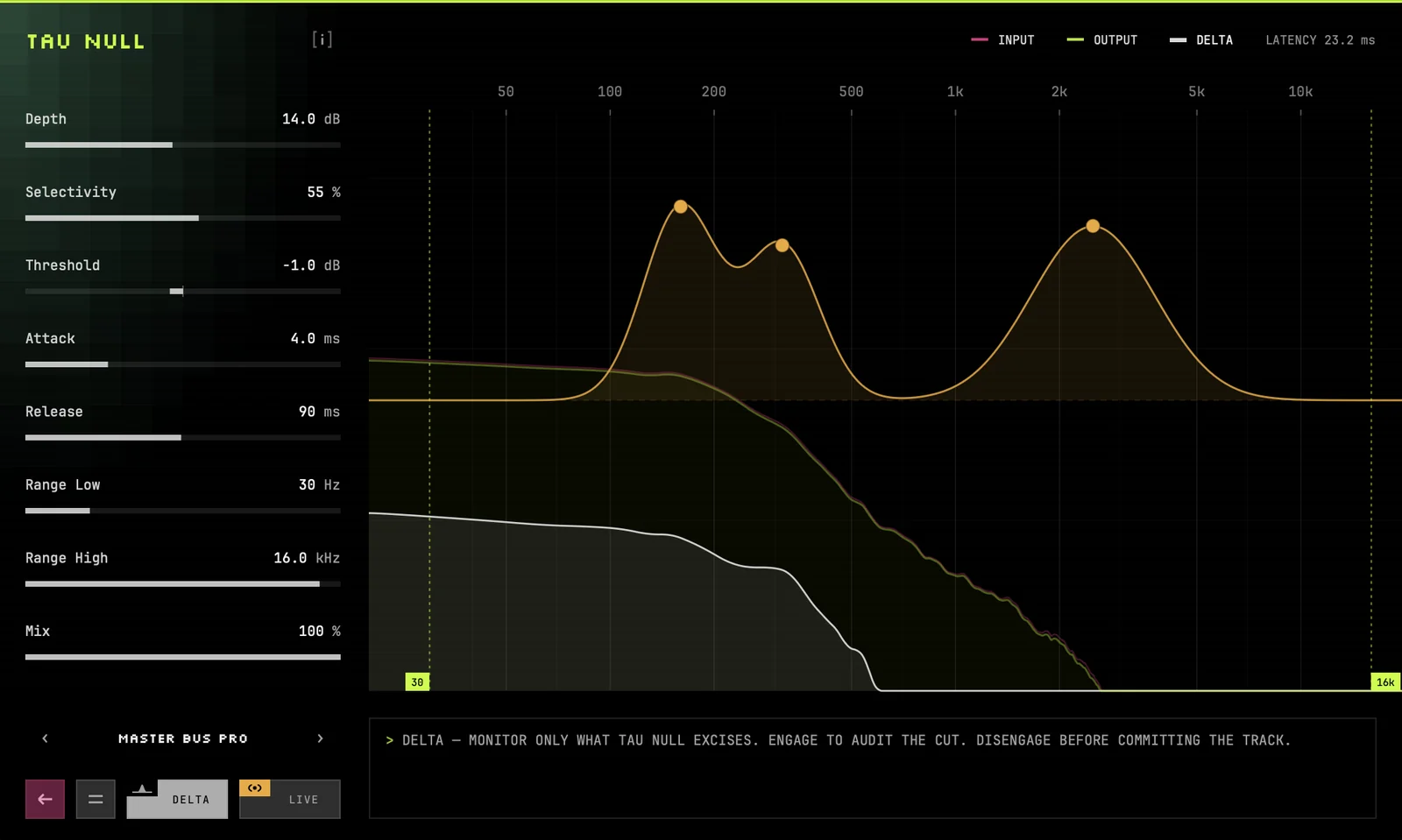
Turn on DELTA to hear only the part of the sound that Tau Null is removing. It is the quickest way to check your settings:
- Good: you hear thin ringing, whistling, harsh edges or boom, the things you wanted gone.
- Too much: you hear the body of the instrument, clear words or the melody. Lower Depth, raise Threshold or narrow the Range.
Turn DELTA off before you export. While it is on, Tau Null outputs only the removed sound.
LIVE AND HQ MODES
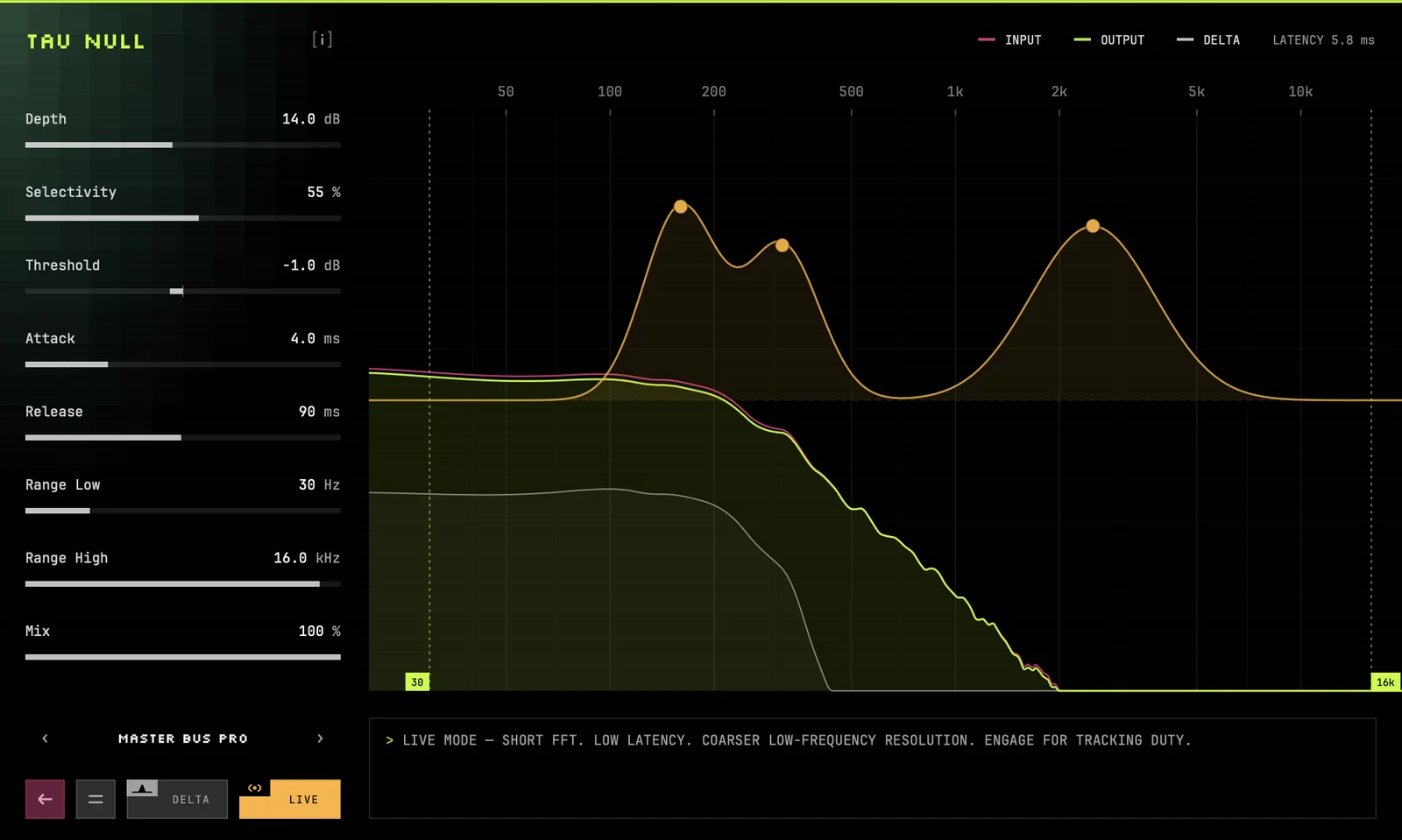
With LIVE off, Tau Null runs in HQ mode, which has the finest detail in the low end and is best for mixing. Your DAW makes up for the delay automatically, so it stays in time with your other tracks.
Turn LIVE on when you record or perform through Tau Null and need to hear yourself without a noticeable delay. Low-frequency detail is a little coarser in LIVE mode, which rarely matters while tracking.
| MODE | DELAY | 44.1 kHz | 48 kHz | 96 kHz |
|---|---|---|---|---|
| HQ (LIVE off) | 1023 samples | 23.2 ms | 21.3 ms | 10.7 ms |
| LIVE | 255 samples | 5.8 ms | 5.3 ms | 2.7 ms |
Switching modes updates your DAW’s delay compensation straight away. You may hear a short click if you switch while audio is playing.
RESET AND BYPASS
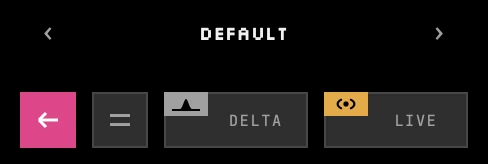
Reset (the pink ← button) returns every control and all three nodes to the values of the current preset. Use it when you have experimented too far and want a clean start. There is no undo for this inside the plugin.
Bypass (the = button) switches processing off so you hear the original sound. Tau Null dims and shows SUSPENDED next to its name. Press it again to turn processing back on.
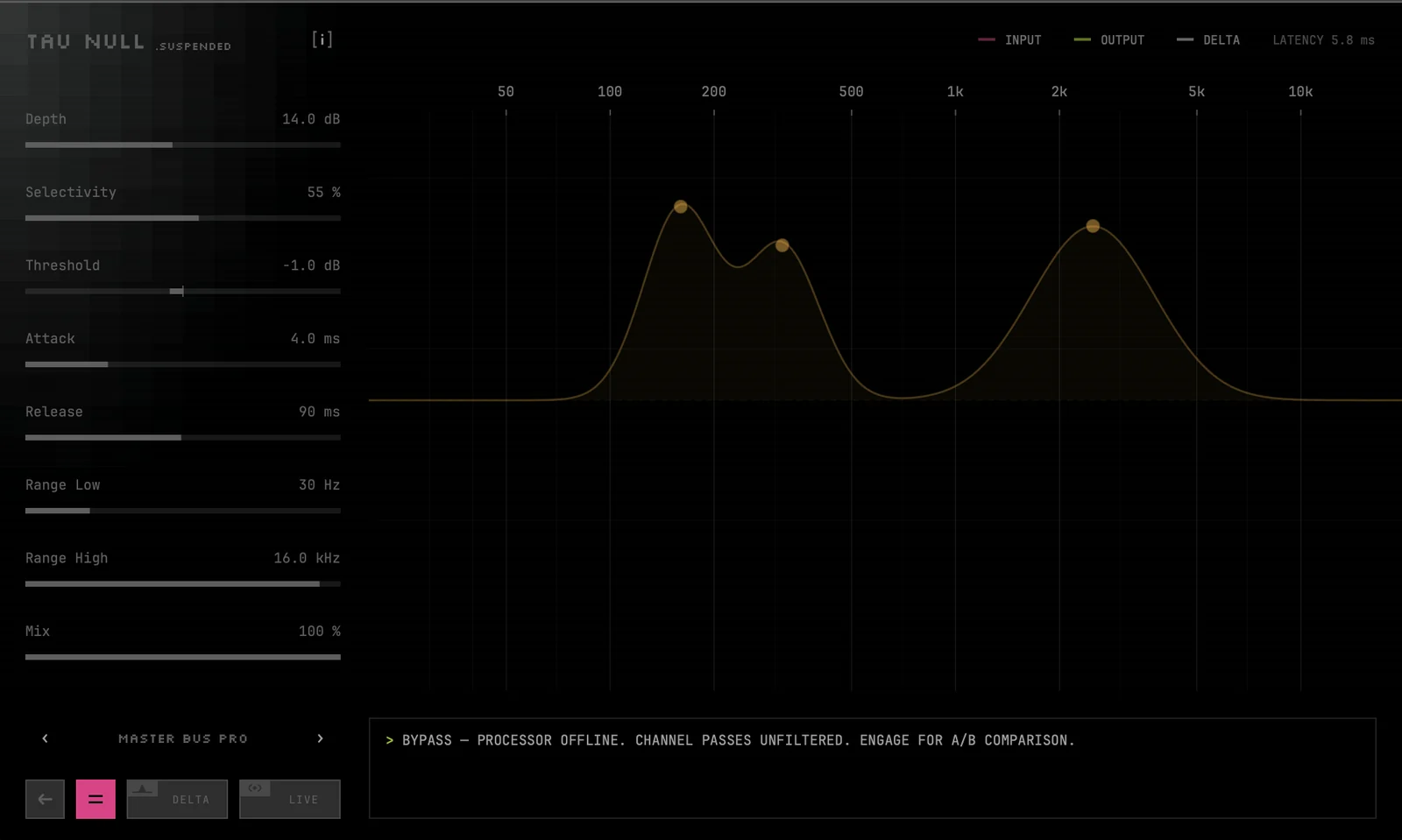
Tip: Tau Null only takes things away, so the processed sound can be a little quieter than the original. When comparing with Bypass, listen for tone, not loudness.
INSTALL STATUS
![The Tau Null name with the [i] button highlighted](assets/manual/info-button.v1.webp)
Click [i] next to the Tau Null name to see your license details:
- Whether the license is active on this computer, or when your trial ends
- How many of your three computers are in use
- When this computer was activated, and when Tau Null last checked its license
- Links to email support and to this website
- Legal notices and third-party licenses
Click RETURN to go back.
TIPS
- Start from a preset, then adjust Depth first and Threshold second. Most of the time that is all you need.
- Check with DELTA every time you make a big change.
- On a full mix, keep it gentle: Master Bus Soft or Master Bus Pro with a lower Depth.
- Use Range Low to keep the low end untouched, especially on kick, bass and full mixes.
- Use the nodes to focus: pull one up where the problem is and one down where you want to keep brightness or warmth.
- If a setting is right but slightly too strong, lower Mix.
- Recording through Tau Null? Turn on LIVE.
TROUBLESHOOTING
It sounds dull or lifeless
Tau Null is taking too much. Lower Depth, raise Threshold, raise Selectivity so it only picks clear peaks, or lower Mix. Check with DELTA.
It doesn’t seem to do anything
Make sure Bypass is off. Then raise Depth, lower Threshold, and check that the problem frequency is inside Range Low and Range High. Pulling a node up over the problem area also helps.
I only hear a thin, quiet sound
DELTA is on, so you are hearing only what is removed. Turn DELTA off.
Tau Null doesn’t appear in my DAW
Rescan plugins in your DAW. Check that the plugin is in
/Library/Audio/Plug-Ins/VST3 or
~/Library/Audio/Plug-Ins/VST3 on macOS, or
C:\Program Files\Common Files\VST3 on Windows. Logic Pro and Pro
Tools cannot load VST3 plugins.
I hear crackles or dropouts
Increase your DAW’s buffer size to 256 or 512 samples. Buffer sizes below 32 samples are not supported. Tau Null supports sample rates from 44.1 to 192 kHz.
Activation problems
Check your internet connection and that the key is pasted in full. If all three computers are already in use, write to hello@tauplugins.com and we will free one up.
If the trial won’t start, check your internet connection and try again. Each computer gets one trial; if yours ended too soon, use REQUEST MORE TIME on the trial-ended screen.
MORE HELP
The FAQ covers licensing, refunds, updates and system requirements. For anything else, write to hello@tauplugins.com. Please include your DAW, your operating system and what you were doing when the problem appeared.